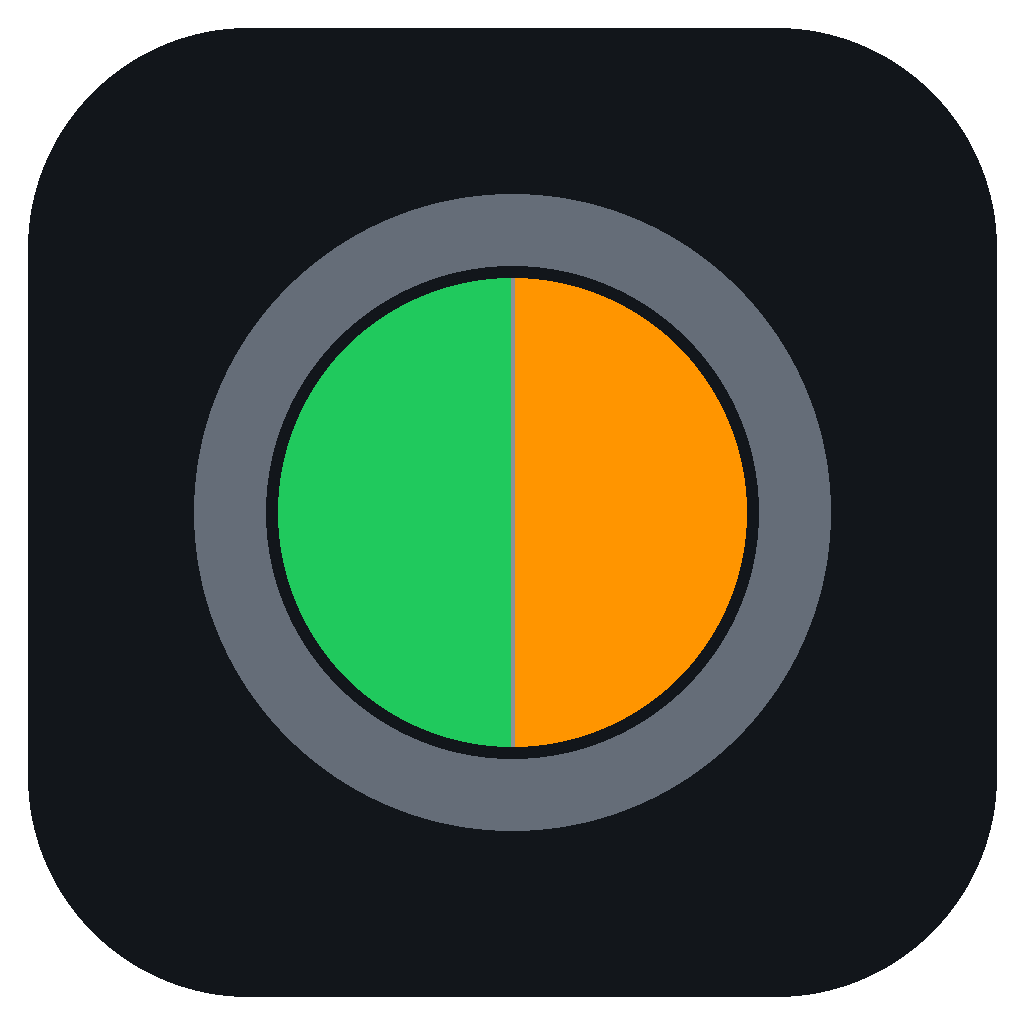
 PrivacyDot
A practical guide · October 21, 2026
Which apps are using your mic and camera?
PrivacyDot puts detected Windows microphone and camera activity beside the clock. Click the dot to see the apps and devices behind it.
A call ends, a browser tab stays open, and you want a quick look at the activity Windows is reporting. PrivacyDot is a free, MIT-licensed tray utility built for that glance. It is especially useful when a headset, USB microphone, and webcam are connected at the same time.
Get the indicator into your tray
- Open the official GitHub release and download PrivacyDotSetup.exe. The current v0.3.1 installer is unsigned.
- Run the installer. It checks for .NET Framework 4.8, installs for your Windows user without administrator privileges, and launches PrivacyDot.
- Look in the Windows notification area, including its overflow area. Left-click the dot for detected activity. Right-click it for refresh, Windows privacy settings, Settings, and Exit.
The installer creates a Startup shortcut. You can manage Start with Windows, language, and update checks in Settings. The interface includes eight languages and follows the Windows app theme where supported.
Read the four colors
| Dot | Meaning |
|---|---|
| Gray | No microphone or camera use detected. |
| Green | Microphone activity detected. |
| Orange | Camera activity detected. |
| Split | Both microphone and camera activity detected. |
Gray describes what PrivacyDot can detect through the available Windows sources. It does not prove that every possible capture path is inactive.
Click through to the device
The popup groups detected apps under the microphone or camera they use. For example, activity on a USB microphone and a headset microphone appears under separate headings. Several apps can appear under one device; an app using several devices can appear under each one.
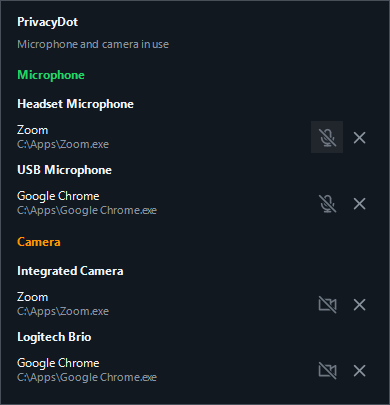
If Windows cannot associate activity with a device, the popup uses Device not identified. It does not guess that the default microphone or camera was used. Devices with identical names receive separate numbered headings; hovering over a heading reveals its device ID.
What to do with unexpected activity
Check the named app's own call or recording controls, then close the relevant session or app if appropriate. PrivacyDot's tray menu also links to Windows privacy settings.
PrivacyDot does not temporarily revoke an app's device permissions. Its force-quit action requires confirmation and can close all matching app processes, including multiple windows. Unsaved work may be lost, and closing an app affects its use of every device.
How the detection works
Microphone attribution reads active Core Audio capture sessions, including endpoint IDs and friendly names. Camera attribution uses the Windows sensor activity monitor where available. Windows privacy usage records provide a fallback when a device cannot be identified.
These are activity metadata sources. PrivacyDot does not open a camera, capture video frames, or record audio. The C# detection code is public for inspection and contributions.
The app targets Windows 7 SP1 and newer with .NET Framework 4.8. Per-camera attribution requires Windows 10 version 1703 or newer. Older Windows versions have limited camera detection. All detection depends on what Windows and the device drivers report.
Where the activity data goes
Device activity stays on the PC. PrivacyDot collects no telemetry and uploads no device-usage data. It contacts GitHub after startup and during manual update checks; downloading an update requires confirmation. The privacy details explain these connections and local preferences.
Written by the PrivacyDot publisher. Behavior checked against v0.3.1. Detection is best-effort.